
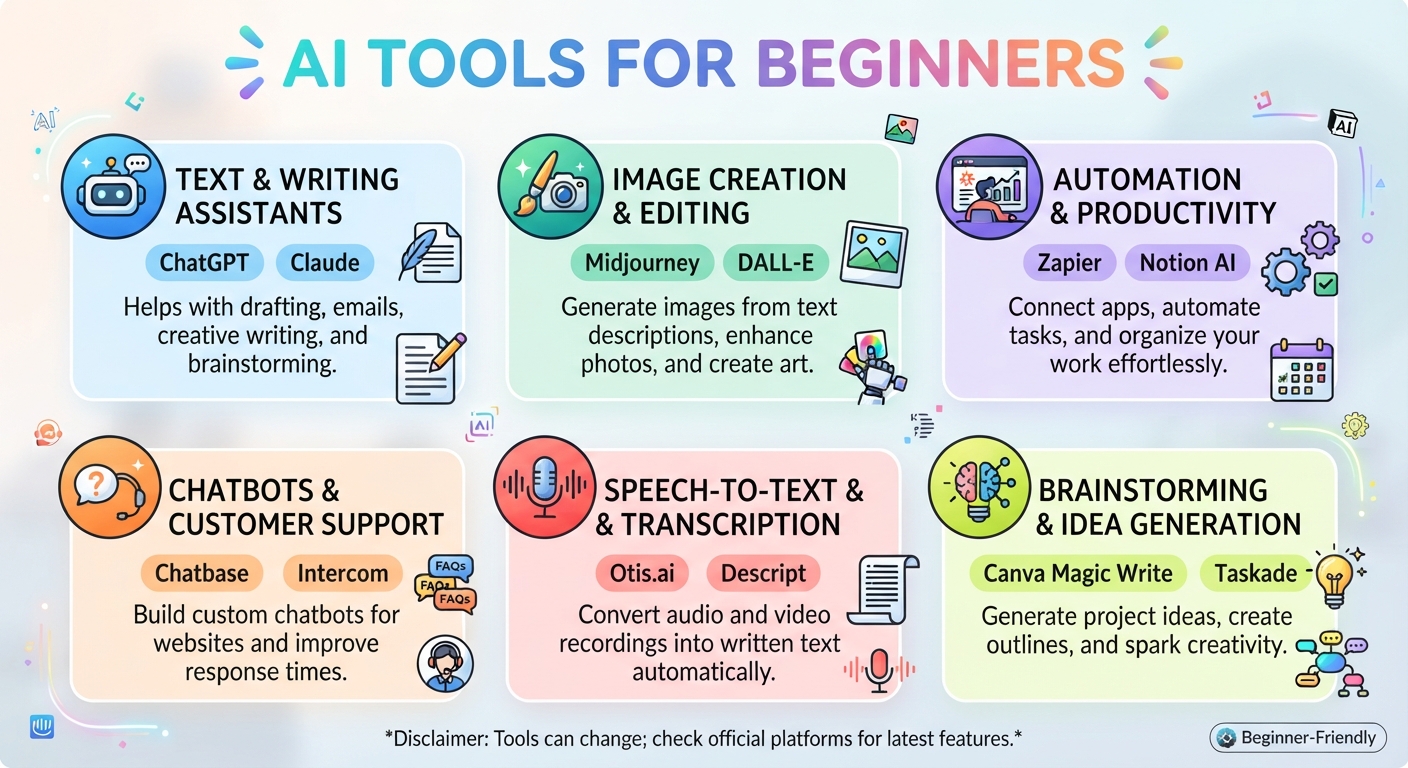
AI Tools For Beginners: What To Use And What To Open First
The short version
- Open a general chat assistant first. ChatGPT, Claude, or Gemini covers most beginner jobs on its own.
- Add a second tool only when you have a job the chat assistant handles badly, such as meeting notes or working from a pile of your own documents.
- Sort tools by the job they do: chat, research, images, your own notes, meetings, and voice.
- Free tiers are enough to learn on. Pay only for the one tool you use every day.
The best AI tools for beginners are the ones that do a single job well and need no setup. You don’t need ten apps. You need one chat assistant you use every day, plus one or two helpers for specific jobs. Below is a short list organized by job, with a clear answer on which to open first.
Open This One First: a Chat Assistant
A general chat assistant writes, rewrites, summarizes, explains, plans, and brainstorms. For most people, it covers nearly everything they’ll want from AI in the first month. Pick one of these:
- ChatGPT. The best-known option and a safe default. Strong all-rounder, with voice and image features in the app.
- Claude. Excellent with long documents and writing that sounds natural. A good pick if your work is heavy on reading and writing.
- Gemini. Google’s assistant. Fits well if you use Gmail, Docs, and Sheets every day.
Choose one and use it daily for two weeks before you add anything else. Here’s a first task to try right now:
I’m new to AI. I work as a [your job]. List 10 specific tasks from a typical week in my job where you could save me time, and show me an example prompt for the first one.
If you want a side-by-side on which assistant fits which kind of work, which AI is best for what goes deeper.
AI Tools For Beginners, Sorted by Job
Once the chat assistant feels normal, add tools only for jobs it can’t do well. Here’s the short list.
Research with sources: Perplexity
Perplexity searches the web and shows the sources behind each answer, so you can click through and check. It’s a good pick for questions about recent events, product comparisons, or anything where you want to see where the answer came from. Chat assistants can search too, but Perplexity is built around it. See how Perplexity AI works for the basics.
Images: your chat assistant or Canva
For quick images, start with what you have. ChatGPT and Gemini can make images from a text description. If you design social posts, flyers, or slides, Canva’s AI features sit inside a tool many people already know. Midjourney makes striking art but it has a steeper learning curve and is mostly a paid tool, so save it for later.
Create a simple, bright image for a bakery’s Instagram post announcing new Saturday hours, 8 to 2. Flat illustration style, warm colors, no text in the image.
Add the text yourself in Canva or your phone’s editor. AI images can still get lettering wrong.
Your own documents: NotebookLM
NotebookLM, from Google, answers questions using only the files you upload, and it points to the passage it used. Upload a 40-page employee handbook, a course reader, or a stack of meeting notes, and ask questions about them. It’s the easiest way to get answers grounded in your own material, and you can start using it for free.
Meetings: a note-taker
If you spend hours a week in video calls, a meeting assistant records, transcribes, and summarizes for you. Otter is a common stand-alone choice. Zoom, Google Meet, and Microsoft Teams also offer built-in AI summaries on some plans, so check what your workplace already pays for before you sign up for anything. Always tell people when a meeting is being recorded.
Voice: the app you already have
The phone apps for ChatGPT, Claude, and Gemini all let you talk instead of type. This is the most underrated beginner feature. You can dictate a messy thought on a walk and get back a clean email draft. If you need to turn text into natural-sounding speech, for a voiceover or an audio version of a document, ElevenLabs is the common starting point.
Which To Open First, Second, and Third
Here’s the order that works for most beginners:
- Week 1 to 2: One chat assistant, used daily on real tasks.
- Week 3: Add voice in the same app. No new account needed.
- Week 4: Add one job-specific tool based on your biggest time sink: meetings, research, images, or documents.
- Month 2 and later: Consider automation tools like Zapier only when you notice the same copy-and-paste job every week.
Skip tools that promise to do everything, apps with names that copy the big brands, and any tool that asks for payment before you can try it. Stick to official apps from known companies.
How To Judge a New Tool in 10 Minutes
New AI tools for beginners appear every week. Before you add one, run this quick test:
- Does it do one job better than your chat assistant already does? Test the same task in both.
- Can you use it free long enough to know?
- Is it from a company you recognize, with a clear privacy page?
- Can you delete your data and your account easily?
- Will you use it at least once a week?
If the answer to any of these is no, skip it. A small set of tools you know well beats a big set you barely open.
One habit applies to every tool on this list: check what comes back. AI tools write with confidence even when a fact, a name, or a number is wrong. Read the output before it goes to anyone else, and verify anything that matters.
Learn The Tools That Fit Your Work
The Guide Library gives you all 30 specialized guides, including in-depth guides to ChatGPT, Claude, Gemini, Midjourney, NotebookLM, meeting assistants, and voice tools, plus guides for specific jobs and skills. Each has a worked example, a prompt pack, and a cheat sheet. Just starting out? The Complete Collection adds the four foundation books.