AI Workflow Automation: Add AI Steps That Work
The short version
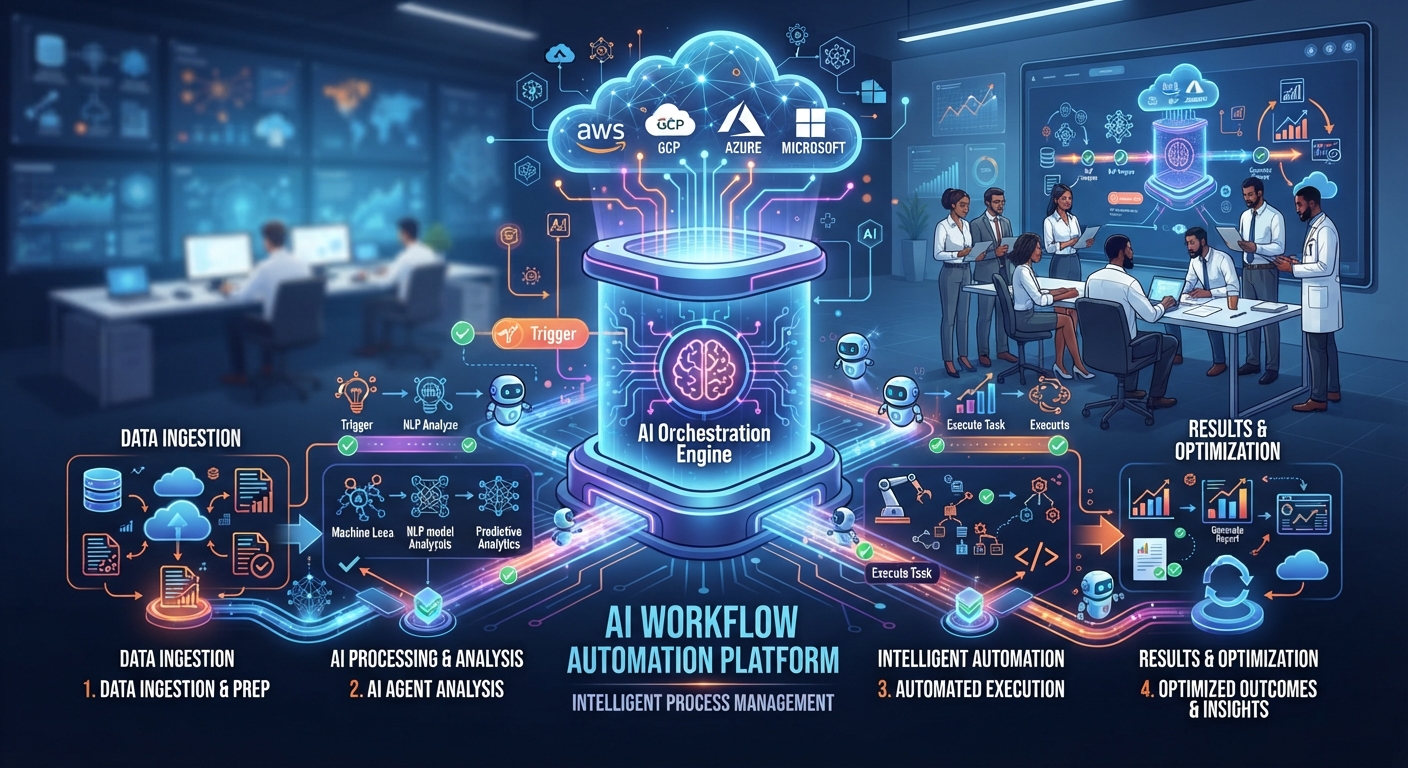
- Regular automation moves data between apps. AI adds the ability to read messy text, decide what it is, pull out details, and draft a reply.
- The best first projects are high-volume, low-risk jobs such as sorting inbound email, pulling fields from invoices, or tagging form responses.
- Map the workflow on paper first. Mark which steps need judgment. Those are the only steps where AI belongs.
- Put a human approval step before anything reaches a customer, and keep it there until the automation has a clean track record.
AI workflow automation means adding an AI step to an ordinary automation so it can handle the parts that used to need a person reading something. A normal automation can copy a form entry into a spreadsheet. With AI in the middle, it can also read a rambling customer email, work out that it’s a refund request about order 4471, pull the order number, and draft a reply for you to approve.
You don’t need to code. Tools like Zapier, Make, and Microsoft Power Automate let you add AI steps with a prompt box. The hard part is choosing the right job and designing the AI step so it gives the same shape of answer every time.
What AI Adds To A Workflow
AI steps do four jobs well inside an automation:
- Classify. Is this email a sales lead, a complaint, a supplier invoice, or spam?
- Extract. Pull the invoice number, due date, and total out of a PDF or email body.
- Summarize. Turn a 900-word form answer into 2 lines for a Slack alert.
- Draft. Write a first reply, a task description, or a follow-up email for a human to check.
What they do badly: math on large tables, anything needing live facts they weren’t given, and final decisions with legal or money consequences. Keep those with rules or with people.
Pick The Right First Workflow
Score each candidate from 1 to 5 on these, and start with the highest total:
- Volume. How often does it happen? Twenty times a week beats twice a month.
- Pain. How much time or attention does it eat?
- Low risk. If the AI gets one wrong, is the damage small and easy to catch?
- Clear rules. Could you explain the decision to a new hire in a paragraph?
- Structured end point. Does it end in a sheet, a task, or a tag, rather than a live customer conversation?
Good AI workflow automation projects for small teams include sorting a shared inbox, logging supplier invoices, tagging and routing contact form leads, and turning meeting transcripts into tasks. Our guide to automating admin work with AI has more candidates.
Design An AI Workflow Automation Step By Step
Worked example: a 5-person accounting office gets about 60 emails a day to a shared inbox. Staff spend the first hour each morning sorting them.
1. Map it on paper
Write each step as it happens now: email arrives, someone reads it, decides the type, forwards it to the right person, sometimes logs it in a sheet. Circle the one step that needs judgment: “decides the type.” That’s the AI step. Everything else is plain automation.
2. Write the categories and rules
List the categories with a one-line definition each: client document, new client inquiry, billing question, tax authority letter, supplier, other. Add one rule: anything mentioning a deadline or a penalty is marked urgent.
3. Write the AI step prompt
“You sort emails for an accounting office. Read the email below and reply with exactly two lines. Line 1: CATEGORY: one of client document, new client inquiry, billing question, tax authority letter, supplier, other. Line 2: URGENT: yes or no. Urgent is yes only if the email mentions a deadline, penalty, or notice. If unsure of the category, use other. Email: [email subject and body]”
The fixed two-line format is what makes the next steps reliable. “If unsure, use other” stops the AI from forcing a guess. For more on this style of prompt, see how to write AI prompts.
4. Route on the answer
Add a router or paths: each category goes to one person’s folder or a label, urgent ones also post to a team chat, and every email gets logged in a sheet with its category.
5. Run it in shadow mode for a week
Let it tag but don’t let it move anything. Each morning, a staff member checks the tags against their own sorting. Count the misses by category. Fix the definitions where it confuses two types, then run another few days.
6. Switch on, with a safety net
Once misses are rare, let it route. The whole point of AI workflow automation is that the morning sorting hour goes back to the team. Keep an “other” folder that a person checks daily, and a weekly look at a sample of 10 sorted emails.
Keep Humans Where They Matter
Any step that sends something outside the business should stop for approval. Draft replies go to a drafts folder, not straight to the client. Extracted invoice totals go to a sheet someone reviews before payment. Set error alerts on every automation so a failed run emails you.
Be careful with client data. Check that the AI service in your automation tool is approved under your data and privacy rules, especially for financial, health, or legal information. When in doubt, ask a professional adviser before you send that data through any AI step.
From Automation To Agent
An automation follows the path you draw. An AI agent decides its own next steps toward a goal. Agents are useful for open-ended jobs, but they’re harder to predict. For most small business work, a well-designed automation with one or two AI steps is more reliable. If you want to see where the line sits, read how to build an AI agent.
Put AI Steps Into Your Own Workflows
AI For Automation With Zapier And Make shows you how to pick workflows worth automating, map them, write AI steps that return clean answers, and add approval and error alerts, all without code. It includes worked builds for inbox sorting, invoices, and leads.