
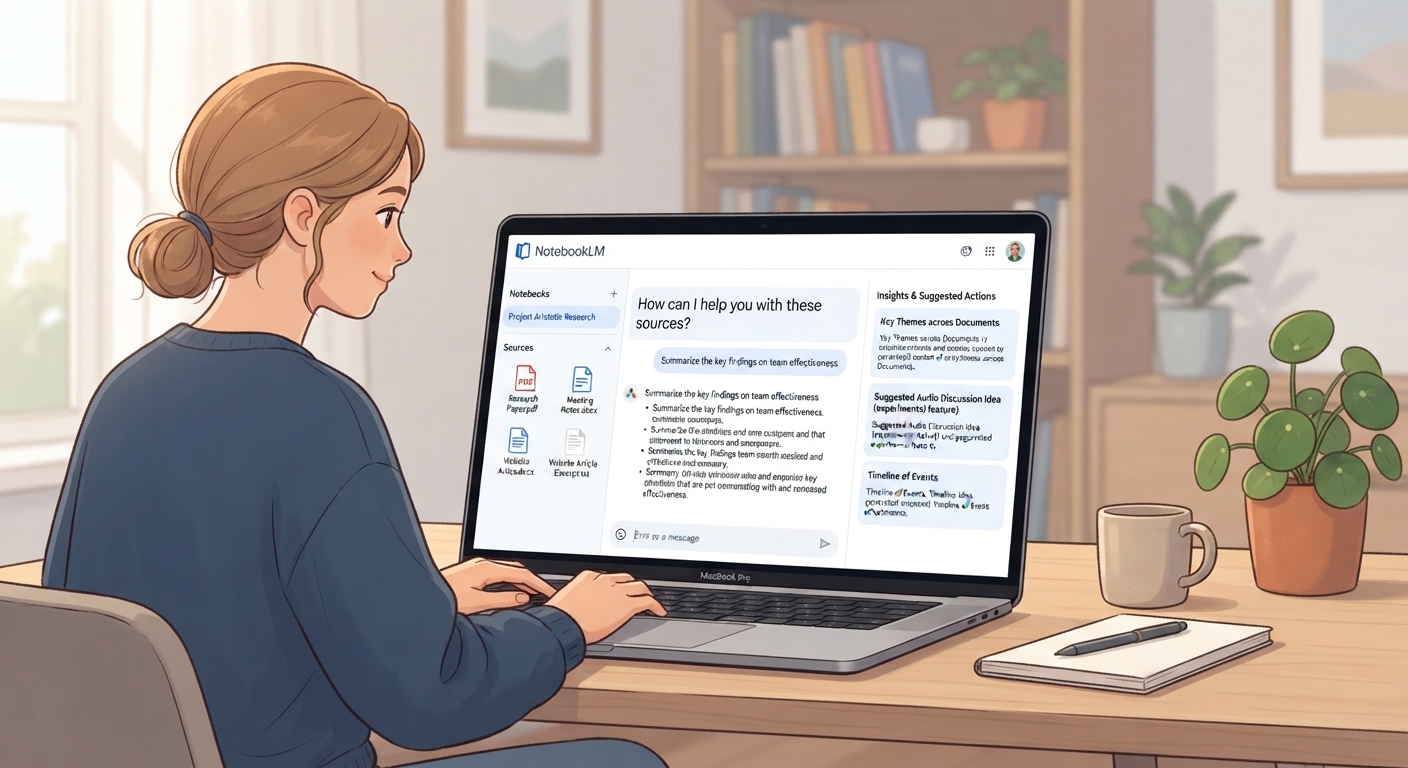
How To Use NotebookLM: Cited Answers From Your Own Files
The short version
- NotebookLM is Google’s free research tool that answers questions using only the documents you give it.
- Every answer comes with numbered citations you can click to see the exact passage in your source.
- Build one notebook per project, such as a lease, a policy manual, or a set of meeting notes.
- Beyond chat, it can turn your sources into briefing docs, FAQs, timelines, and a podcast-style audio overview.
- It’s only as good as what you upload. Missing or outdated sources mean missing or outdated answers.
Learning how to use NotebookLM takes about ten minutes: make a notebook, add your documents, and ask questions. What makes it different from a regular chatbot is that it sticks to your sources and shows you where each answer came from. That makes it one of the safest AI tools for work where accuracy matters. Here’s the setup, the features worth using, and prompts for real projects.
Set Up Your First Notebook
- Go to notebooklm.google.com and sign in with your Google account.
- Click to create a new notebook. Name it after one project, like “Office Lease 2nd Floor” or “Employee Handbook Update”.
- Add sources. You can upload PDFs and text files, pick Google Docs and Slides from Drive, paste website links or YouTube links, or paste in text.
- Wait a moment while it reads them. You’ll see a short auto-summary of your sources.
- Ask your first question in the chat box.
Keep each notebook focused. A notebook with 6 files on one topic gives sharper answers than one with 40 files on everything.
How To Use NotebookLM For Questions You Can Trust
The chat works like any AI chat, with one key difference: answers show small numbered citations. Hover or click one and you see the exact passage it came from. Use that on anything you plan to act on.
Good questions are specific and point at what you need to decide:
“According to the lease, who pays for HVAC repairs, and is there a dollar cap? Quote the relevant clause.”
“Across these five meeting notes, list every decision that was made, with the date of the meeting where it was made.”
“Where do these two versions of the refund policy disagree? Show both passages side by side.”
If the answer says the sources don’t cover something, believe it. That’s the tool doing its job. A general chatbot would often guess instead.
Follow up like an editor
Treat the first answer as a draft. Push on it with short follow-ups:
- “Which source is that from, and what page?”
- “Is there anything in the sources that contradicts this?”
- “Put that in a table with one row per vendor.”
- “Rewrite that for a new employee who has never seen these documents.”
- “What question should I be asking that I haven’t?”
That last one is underrated. It often surfaces a clause, a deadline, or a risk you’d have missed.
You can also select which sources to include. Uncheck a source in the left panel and the chat ignores it. This is useful when you want an answer from only the newest version of a document.
Features Beyond Chat
NotebookLM can produce finished material from your sources. Look for these in the studio or output panel:
- Briefing doc. A structured summary with key themes and quotes. Good for getting up to speed on a pile of documents before a meeting.
- FAQ. Questions and answers drawn from the sources. Useful for turning a dense policy into something staff can scan.
- Timeline. Pulls dates and events into order. Great for a long email chain or a project history.
- Audio overview. A podcast-style conversation between two AI voices about your sources. Handy for listening on a commute. You can steer it with instructions, such as “focus on the budget changes”.
- Mind map. A visual map of the main topics and how they connect.
- Notes. Save any answer as a note so you can build your own working document inside the notebook.
The exact set of features grows over time, so explore the panel when you open a new notebook.
Three Projects To Try This Week
Understand a long contract
Upload a 35-page vendor agreement. Ask for every date, fee, and notice period in a table with citations. Then ask what happens if you cancel early. This is the kind of admin reading NotebookLM handles well. It doesn’t replace a lawyer. Have anything with real legal stakes checked by a professional.
Turn meeting notes into a project record
Add every set of notes from a 3-month project. Ask for the timeline, then for every open action item with its owner. Pair this with our meeting summary guide so your notes go in clean.
Build a staff reference
Upload your handbook, your SOPs, and the benefits summary. Generate an FAQ, then check each answer against its citation. Share the notebook with your team so they can ask their own questions. If you don’t have SOPs yet, writing SOPs with AI shows you how to create them first.
Limits And Privacy
- It only knows your sources. It won’t catch that a policy changed if you uploaded the old version.
- Citations show where an answer came from, not whether the source itself is correct.
- Scanned PDFs with poor image quality may not read well. Use clean digital copies where you can.
- There are limits on how many sources and how much text a notebook can hold. Very large projects may need more than one notebook.
- Check your organization’s policy before uploading client or confidential files. Work accounts may have different rules than personal ones.
For a broader view of source-based research, see AI research without hallucinations. Once you know how to use NotebookLM on one project, set up a notebook for each ongoing area of your work and add new files as they come in.
Make Your Documents Work For You
AI For Getting The Most From NotebookLM shows you how to set up notebooks for real work, ask questions that get cited answers, and turn source piles into briefings, FAQs, and audio overviews. It includes a worked example, a prompt pack, and a cheat sheet.