
How To Use Gemini: A Practical Guide For Everyday Work
The short version
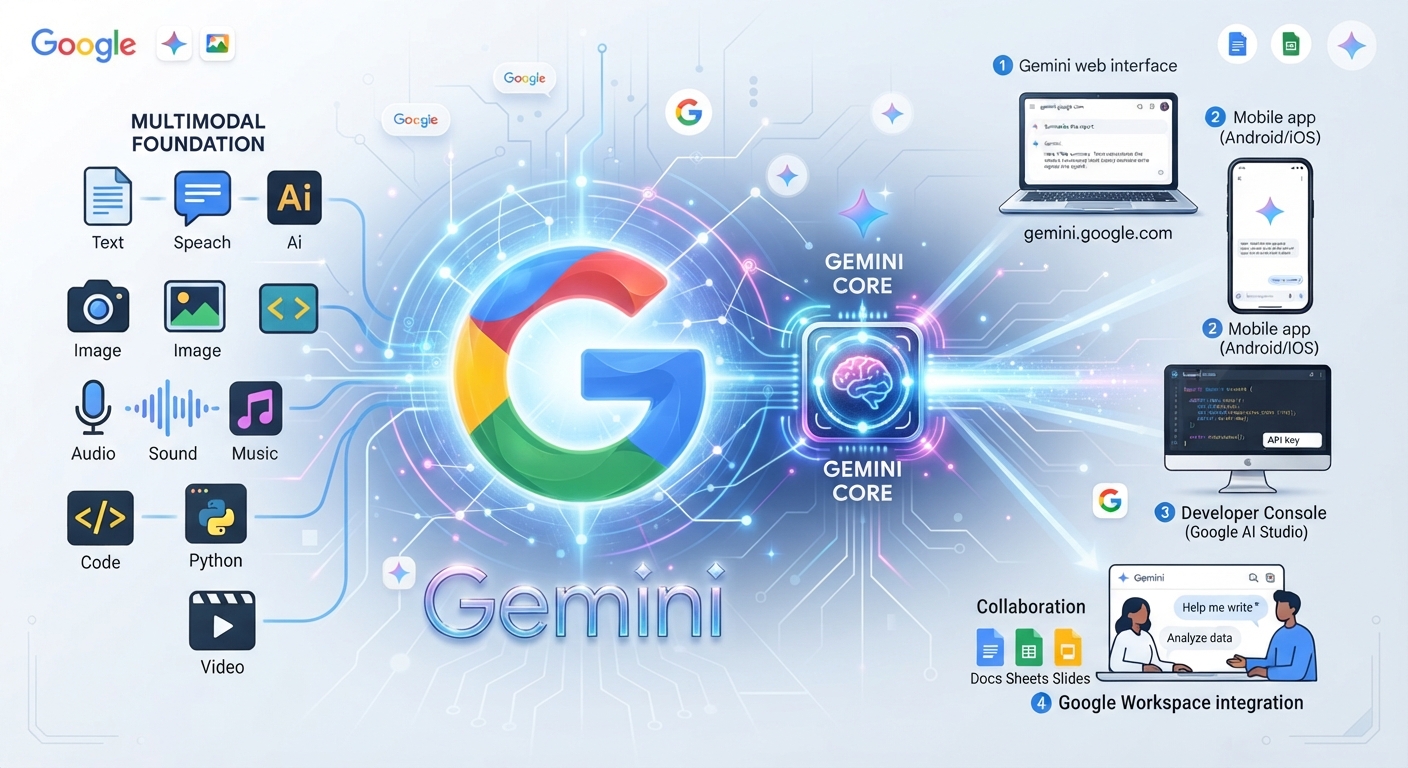
- Gemini is Google’s AI assistant. You can use it free at gemini.google.com or in the phone app with your normal Google account.
- Its big advantage is reach: it can work with your Google Drive, Docs, Maps, and YouTube once you switch those connections on.
- Give it context, a clear job, and a format. Short vague requests get short vague answers.
- Save your best instructions as a Gem so you never retype them.
- Check facts, numbers, and anything it pulls from the web before you send it to anyone.
If you want to know how to use Gemini, start with one real task from your week and run it through the chat window today. Learning how to use Gemini well comes down to three habits: tell it who the work is for, give it the raw material, and say what the finished result should look like. The rest of this guide shows you where to click and what to type.
Get Set Up In Five Minutes
Go to gemini.google.com on a computer, or install the Gemini app on your phone. Sign in with the Google account you already use for email. That’s it. There’s no separate account to create.
Before your first real task, open the settings and take two minutes on these:
- Find the activity setting for Gemini Apps. Decide if you want your chats saved and used to improve Google’s products. If you handle client or company data, turn it off or use a work account your employer manages.
- Open the apps or extensions area and switch on the Google services you want Gemini to reach, such as Drive, Docs, Maps, and YouTube.
- If you use a work account, ask your IT person what’s allowed. Some companies turn features off on purpose.
- Pin the site or the app somewhere you’ll see it. You’ll use it more if it’s one click away.
Your First Three Tasks
Don’t start by testing trivia. Start with work you already have to do. Here are three tasks that show you what Gemini does well.
1. Turn messy notes into a plan
Paste in your notes from a call or a to-do list you typed on your phone. Then ask for structure.
“Here are my notes from a planning call for our spring open house. Turn them into a task list with an owner and a due date for each item. Flag anything that has no owner. [paste your notes]”
2. Summarize a long file
Upload a PDF or a Google Doc with the plus button next to the chat box. A 22-page vendor contract or a 40-slide deck works fine.
“Summarize this document in 8 bullets for a busy manager. Then list any dates, dollar amounts, and deadlines in a table with the page number where each one appears.”
Asking for page numbers matters. It gives you a fast way to check the summary against the source.
3. Plan something with Maps and YouTube
This is where Gemini feels different from other chat tools. With the Maps connection on, you can ask for real places.
“I’m driving from Orlando to Savannah on Saturday with two kids. Suggest two lunch stops near the highway around the halfway point, with opening hours. Then find a short YouTube video about things to do in Savannah with kids.”
How To Use Gemini With Your Google Files
Most people never try this, and it’s the best reason to pick Gemini. Once the Drive and Docs connections are on, you can point it at files by name. Type the @ sign in the chat box to pick a Google app, then ask your question.
“@Google Drive find the Q3 budget spreadsheet and the Q3 recap doc. Tell me which three expense lines went over plan and by how much.”
If it picks the wrong file, name the file more exactly or upload it directly. Treat the answer as a first pass. Open the source file and check the numbers yourself before you forward anything.
If you pay for a Google plan that includes Gemini in Docs, Sheets, and Gmail, you’ll also see a Gemini button inside those apps. It opens a side panel that works on the file in front of you. Which features appear depends on your plan and your account type, so look for the Gemini icon in the top right of each app.
Make Your Prompts Do More Work
Gemini gives better answers when your request has four parts. Use them in this order:
- Role or audience. Who is the reader? A new hire, a client, your landlord?
- Material. Paste the notes, upload the file, or name it in Drive.
- Job. Summarize, draft, compare, plan, or critique. Pick one verb.
- Format. Bullets, a table, an email under 120 words, three options to choose from.
- Limits. What to leave out, what tone to avoid, what it must not guess.
When the first answer is close but off, don’t start over. Reply with a correction: “Shorter. Drop the second paragraph. Make the tone warmer.” Two or three rounds of feedback usually beats one perfect prompt. Our guide on writing better AI prompts goes deeper on this.
Save your best prompts as Gems
A Gem is a saved assistant with your instructions built in. If you write the same kind of thing every week, make one. Open the Gem manager, give it a name, and write instructions like these:
“You write weekly client update emails for a small bookkeeping firm. Keep each email under 150 words. Open with the one thing the client must do this week. Use plain words, no jargon. End with a single question that invites a reply.”
Now you paste in your notes each Friday and get a draft in your format every time.
Where Gemini Falls Short
Gemini is a good assistant, and it still makes mistakes. Know these limits before you rely on it:
- It can state a wrong fact with total confidence, especially names, dates, and figures.
- It may miss details buried in long files. Ask it to quote the exact line when a detail matters.
- Answers that pull from the web can mix up sources. Use the option to double-check a response, where you see it, and open the links.
- The free tier has limits on usage and some features. Heavy users hit them.
- Connected apps only work with the Google account you’re signed into. Files in another account stay invisible.
Read how to spot AI mistakes for a simple checking routine. If you’re still deciding between tools, this tool comparison shows where Gemini fits next to ChatGPT and Claude.
A Simple Weekly Routine
Here’s a routine that makes Gemini part of your week without much effort:
- Monday: paste your task list and ask for a ranked plan with time estimates.
- Midweek: upload one long document you’ve been avoiding and ask for a summary with page numbers.
- Thursday: use a Gem to draft your recurring update or report.
- Friday: ask Gemini to review what you shipped and suggest one process to speed up next week.
Do this for two weeks and you’ll know exactly where it saves you time and where you’d rather do the work yourself.
Get More From Gemini Across Google
AI For Getting The Most From Gemini walks you through Gemini in chat, Drive, Docs, Sheets, and search, with a worked example, a prompt pack, and a one-page cheat sheet. If you’re brand new to AI, the Core Four Bundle covers the foundations first.