
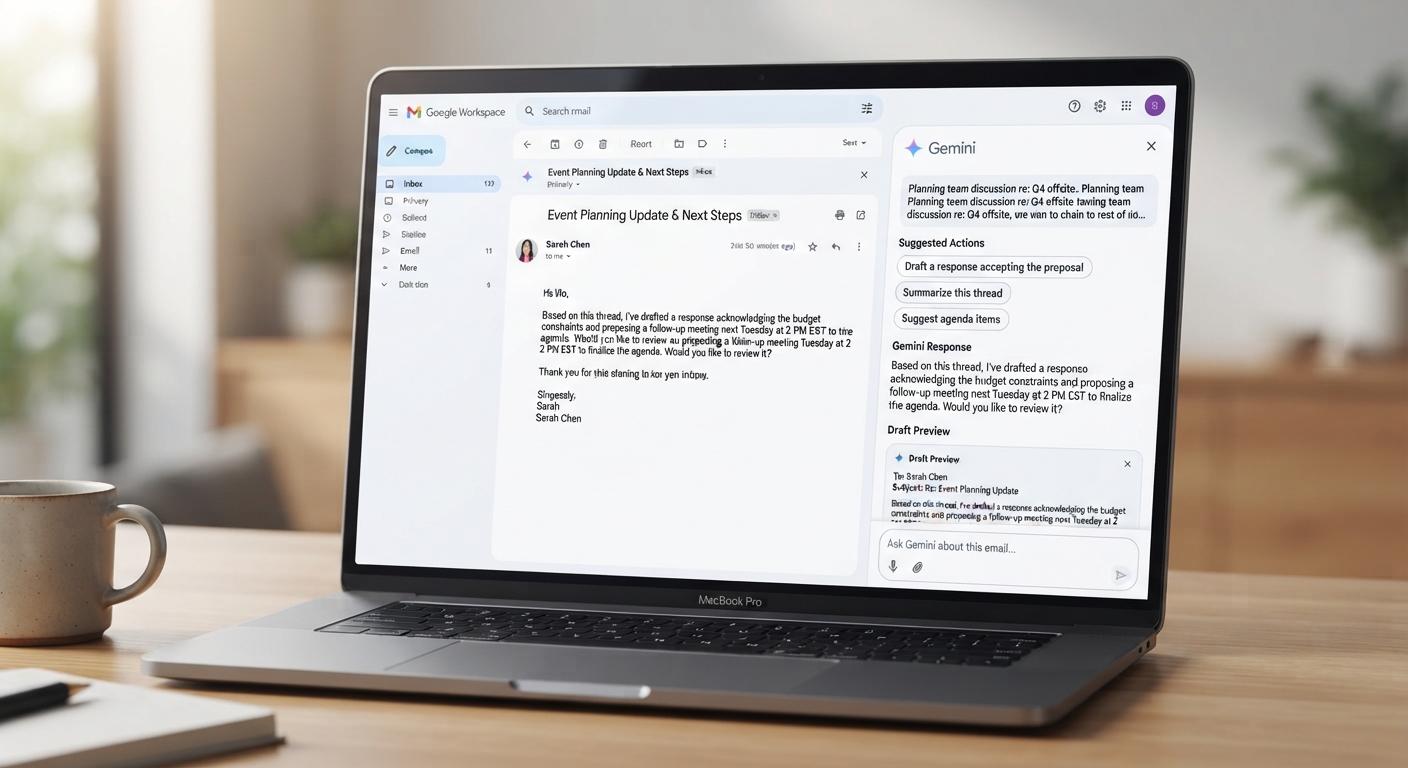
Gemini In Gmail: Summarize, Reply, And Search Faster
The short version
- Gemini in Gmail can summarize long threads, draft replies, polish your writing, and find emails when you ask in plain words.
- The built-in panel and writing tools depend on your Google plan. The Gemini app can also search your inbox once you connect Gmail.
- Your best results come from telling it what you want the reply to say. Leave the wording to it.
- Never let it send anything with a date, price, or promise you haven’t checked.
Gemini in Gmail is Google’s AI built into your inbox, and it saves the most time on two jobs: reading long threads and writing replies. You open a thread, ask for the gist, and draft your answer without leaving the page. Here’s how to set it up and use it for real email work, with prompts you can copy.
Where To Find It
Depending on your account, you’ll see Gemini in a few places inside Gmail:
- The Gemini button in the top right of Gmail on a computer. It opens a side panel where you can ask questions about the open email or your inbox.
- A summary option at the top of long threads, which condenses the conversation into a few points.
- Help me write in the compose window, marked with a pen or sparkle icon. It drafts a new email or reworks the one you’ve typed.
- Suggested replies under some messages, which you can tap and then edit.
- The Gemini app at gemini.google.com, where you can type @Gmail to search and summarize your mail.
If you don’t see these, your plan or your company’s settings may not include them. Workspace admins can switch AI features off. The Gemini app route often still works on a personal account once you turn on the Gmail connection in its settings.
Summarize Threads Before You Read Them
A 27-message thread about a delayed office move is a classic time sink. Open it, click the Gemini button, and ask for exactly what you need:
“Summarize this thread in 5 bullets. Then tell me: what decision is still open, who is waiting on me, and what’s the latest date anyone mentioned?”
That second part is where the time savings come from. A plain summary tells you what happened. A targeted question tells you what to do next.
Check one thing before you act: the dates. If Gemini says the movers come on the 14th, open the message where that was said. Summaries can grab an old date from early in the thread that later changed.
You can ask follow-ups in the same panel. “Draft a two-line reply confirming I’ll send the lease by Thursday” works right after the summary, because Gemini already has the thread in view.
Draft Replies With Help Me Write
Click reply, then open Help me write. Type what you want to say in rough form. Short and specific beats long and polished here.
“Tell Maria yes to the Tuesday call but at 2pm, not 10am. Ask her to send the updated floor plan before then. Friendly, short.”
You get a full draft. Now refine it with the options that appear, such as making it more formal, shorter, or longer. You can also type a follow-up instruction like “Drop the first sentence” or “Sound less stiff.”
Polish what you already wrote
If you’ve typed a rough reply yourself, Gemini can clean it up. This keeps your content and fixes tone and grammar. It works well for touchy emails where you want to sound calm. For the hardest ones, like a customer who’s upset, pair it with our guide on responding to an angry customer email.
Use Gemini In Gmail To Find Things
Gmail’s search box needs exact words. Gemini lets you ask the way you think:
- “Find the email where the landlord told us the rent increase amount.”
- “What did the accountant ask me to send before the end of the month?”
- “List every invoice email from October with the sender and the amount.”
- “When is my flight to Denver, and what’s the confirmation code?”
This is where Gemini in Gmail pays off for people with messy inboxes. It pulls the answer and points to the source email. Click through to confirm. If an amount or a code matters, copy it from the original message, never from the summary.
A 15-Minute Morning Routine
Here’s a way to clear the overnight pile using these features together:
- Ask the side panel: “What emails from today need a reply from me, and which are just updates?”
- Open each thread that needs a reply. Use the summary if it’s longer than 5 messages.
- Use Help me write for each reply. Give it one line of direction, then edit the draft.
- Archive anything the summary showed you don’t need to act on.
- Star the two or three replies you want to double-check after lunch, when you’re reading with fresh eyes.
- For anything that needs a real decision, move it to a task list instead of answering in a rush.
If you want to take this further with filters, labels, and a full system, see inbox zero with AI.
Rules For Using It Safely
Email is where AI mistakes turn into real problems, because a sent message can’t be pulled back. Follow these rules:
- Read every draft in full before you hit send. Every time.
- Check names, dates, prices, and attachments against the original thread.
- Never let it make a promise you didn’t ask for. Drafts sometimes add “we’ll have this to you by Friday” on their own.
- On a work account, follow your company’s AI policy about client data.
- Keep sensitive replies, such as HR, legal, or money disputes, in your own words. Use Gemini only to check tone.
- Watch for replies that sound like a template. Add one specific detail so the reader knows a person wrote it.
For a broader checklist, how to spot AI mistakes covers what to look for in any AI draft.
Use Gemini Across Your Whole Google Account
AI For Getting The Most From Gemini covers Gmail and then goes further: Docs, Sheets, Drive, and search, with a worked example, a prompt pack, and a cheat sheet you can keep by your desk. It’s written for busy people with full inboxes.