
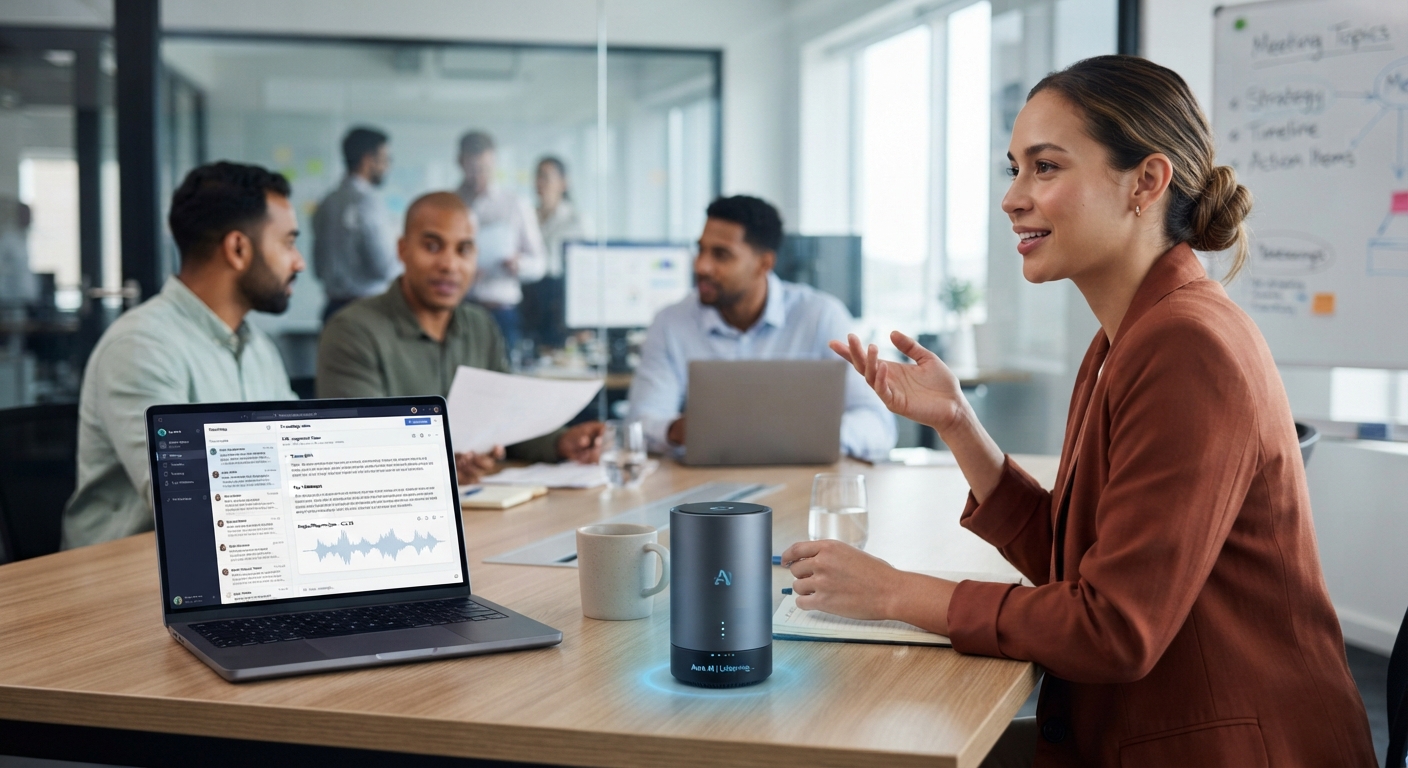
AI Note Taker: How To Choose, Set Up, And Trust One
The short version
- An AI note taker records a meeting, transcribes it, and writes a summary with action items, so you can listen instead of typing.
- Start with the one built into the video platform you already use. Add a separate tool only if you need search across meetings or in-person recording.
- Always tell people you’re recording, and follow any consent rules your company or location has.
- Read and fix the summary within an hour of the meeting. That’s when you still remember what was actually said.
An AI note taker is worth using if you spend more than a few hours a week in meetings and your notes are either thin or missing. It listens, transcribes, and hands you a summary, decisions, and a to-do list minutes after the call ends. The gain is simple: you get to pay attention to the people in the room.
It isn’t perfect. It mishears names, misses sarcasm, and sometimes assigns a task to the wrong person. The setup and review habits below are what make it trustworthy.
The Three Kinds Of AI Note Taker
Built into your meeting platform
Zoom, Microsoft Teams, and Google Meet each offer AI notes on some paid plans. You switch it on in the meeting, and the summary lands in your account or your inbox. No extra bot, no extra login. If your company already pays for one of these, start here.
Bots that join your calls
Tools like Otter, Fireflies, and Fathom connect to your calendar and send a bot into your meetings as a named participant. They work across platforms, keep a searchable library of every call, and often connect to your CRM or project tool. Good if you meet on several platforms or want to search “what did the client say about pricing in March”.
Phone and desktop recorders
For in-person meetings, a phone app records the room and does the same transcription and summary. Place the phone in the middle of the table. An inexpensive conference mic helps a lot in large rooms, and it cuts the number of “unclear” gaps in the transcript. Ask people not to talk over each other for the first few minutes while you test it.
How To Pick An AI Note Taker
Test two tools on the same 3 real meetings. Judge them on these points:
- Name accuracy. Did it get people and product names right? Most let you add a custom vocabulary list.
- Speaker labels. Did it know who said what, especially with 5 or more people?
- Action items. Were the tasks real tasks, with the right owner?
- Where data goes. Can you control retention and delete recordings? Does your IT team approve it?
- Sharing. Can you send a clean summary to attendees without sharing the full recording?
- Fit. Does it push notes into the place you already work, like email, Slack, or your CRM?
Price and plan limits change often, so compare those last, once you know which tool gives you usable notes. For a wider view of the options, see which AI is best for what.
Set It Up Once, Properly
- Connect only the calendar you use for work meetings.
- Turn off auto-join for every meeting. Set it to join only meetings you choose, or only ones you host. Auto-join is how bots end up in a sensitive HR call.
- Add a vocabulary list: team names, client names, product names, acronyms. Ten minutes here saves a lot of fixing later.
- Set the summary template. Many tools let you pick sections. Choose decisions, action items with owners, open questions, and a short recap.
- Set who receives the summary automatically. Start with just you, until you trust it.
Consent And Etiquette
Recording people without telling them damages trust fast, and in some places it’s against the law. Recording laws differ by location, so check your company’s policy or ask a legal professional if you’re unsure. At minimum:
- Say it at the start: “I’m using an AI note taker so I can focus. Anyone mind?”
- If anyone objects, turn it off. Take notes by hand for that one.
- Don’t record calls about health, discipline, legal matters, or pay unless your company says you can.
- Tell external guests before the call, in the invite.
Turn Raw Notes Into Something People Use
The auto-summary is a draft. Spend 5 minutes on it right after the meeting:
- Check every action item. Fix the owner and add a date if one was agreed.
- Delete anything said off the record or in jest that reads badly in print.
- Correct names and numbers. “Fifteen” and “fifty” get confused often.
- Send the fixed version to attendees within the hour.
- Save it where the project lives, such as the shared folder or the ticket, so nobody has to ask for it.
If the built-in summary is weak, paste the transcript into a chatbot and ask for what you need:
“Here’s a transcript of a 45-minute project meeting with 6 people. List decisions made, action items with owner and due date, and risks raised. If an owner or date wasn’t stated, write ‘not stated’. Keep it under 200 words.”
Our AI meeting summary guide has more prompts for turning transcripts into follow-up emails and status updates.
Search across meetings
After a month of recordings, the library becomes useful on its own. Ask questions like “What did we decide about the Q3 launch date?” or “Every time the Hartley account raised a complaint”. Check the linked transcript moment before you quote it to anyone.
Where AI Notes Fall Short
An AI note taker records words, not meaning. It won’t notice the long pause after a proposal, or that the boss’s “sure, fine” meant no. It may treat a brainstorm idea as a decision. Keep one line of your own notes for the things only a human catches: mood, what wasn’t said, who needs a follow-up call. See how to spot AI mistakes for a fast checking routine.
Get Every Meeting Down In Writing, Without Typing
AI For Meeting Assistants covers picking a note taker, setting it up safely, consent scripts, and prompts that turn transcripts into follow-ups, status reports, and task lists. It includes a worked example from a real-format meeting and a one-page cheat sheet.