AI Video Editing: A Faster Workflow For Real Videos
The short version
- AI video editing lets you cut a video by deleting words from its transcript, which is far faster than scrubbing a timeline.
- The biggest time savers are filler-word removal, silence trimming, auto captions, and turning one long video into short vertical clips.
- AI gets you a clean rough cut. You still decide the story, the order, and what stays.
- Work in a fixed order: transcript, rough cut, cleanup, captions, clips. Skipping around wastes the time you just saved.
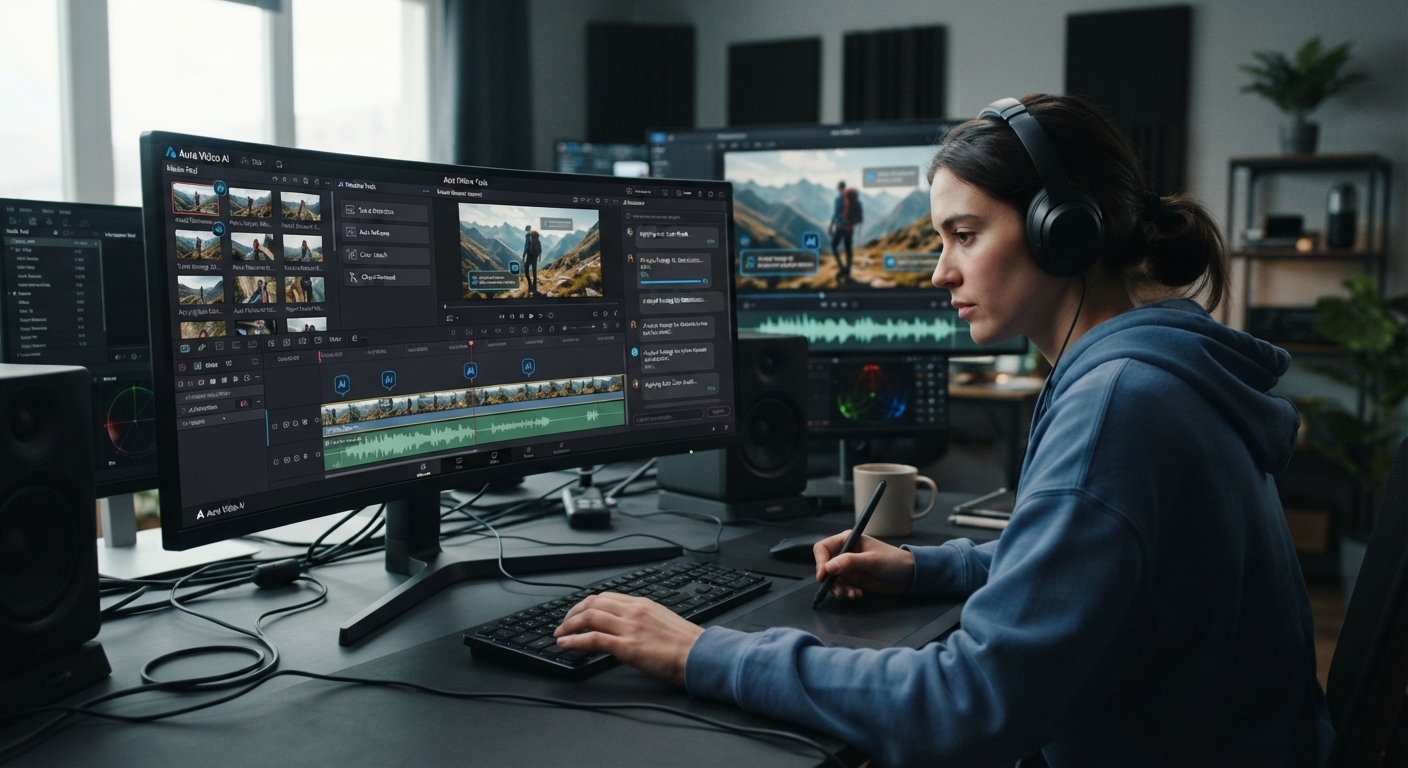
AI video editing is mostly about one change: you edit the words, and the video follows. The tool transcribes your footage, you delete sentences in a text document, and the matching video disappears. For talking-head videos, training clips, demos, and interviews, that single feature cuts editing time more than anything else.
Below is a full workflow using a real-shaped example: a 12-minute screen-and-camera product demo that needs to become a 6-minute video plus 3 short clips for social.
What The Tools Do Well
Descript, CapCut, and Adobe Premiere Pro all offer some form of text-based editing and automatic captions. Many editors also include these AI features, though the names differ:
- Filler-word removal. Finds “um”, “uh”, and repeated words, and removes them in one click.
- Silence trimming. Shortens long pauses to a length you set.
- Audio cleanup. Reduces echo and background hum so a laptop mic sounds closer to a studio.
- Auto captions. Burned-in or separate caption files, with styling.
- Auto reframe. Keeps the speaker centered when you turn a wide video into a vertical one.
- Clip finder. Suggests short moments that might work on their own.
Some also offer eye-contact correction, AI voice fixes for a misspoken word, and background removal. Test those on your footage before you rely on them. Results vary with lighting and camera angle.
An AI Video Editing Workflow, Step By Step
1. Transcribe and read first (10 minutes)
Import the 12-minute demo. Let the tool transcribe it. Before you cut anything, read the transcript once, like a script. Mark three things: the parts that must stay, the parts that repeat, and any mistakes you said on camera.
2. Rough cut in the text (15 minutes)
Delete whole sentences and false starts in the transcript. Aim for 6 minutes. You’ll often find the intro is 90 seconds of warm-up that can go down to 15. Move a paragraph if the order is wrong. Most text editors let you cut and paste sections like a document.
3. Clean up (5 minutes)
Run filler-word removal, then silence trimming with a gap of about half a second. Watch the result at normal speed. If cuts feel jumpy, bring back a few pauses. Removing every breath makes people sound like robots.
4. Fix the audio (2 minutes)
Apply audio cleanup. Compare before and after on headphones. Heavy settings can make voices sound thin, so pull it back if needed.
5. Add visuals
Add zooms on the screen recording where you click something important. Add a title card and your logo. Some tools can generate B-roll or stock suggestions from the transcript. Use them sparingly, since generic stock footage looks cheap in a product demo.
6. Captions (5 minutes)
Generate captions and read every line. Product names, prices, and people’s names are where errors hide. Fix them in the transcript and the captions update.
7. Export and check (5 minutes)
Export at the resolution you recorded in. Watch the full export once on a phone, since that’s where most people will see it. Listen for cut-off words at edit points. Those are the most common AI editing slip, and they’re easy to fix by nudging the cut a few frames.
Turn One Video Into Several
Once the main edit is done, use the clip finder or pick moments yourself. For the demo, three clips might be: the 40-second problem statement, the 30-second “here’s the new feature” moment, and a 45-second customer question answered on screen. For each:
- Duplicate the project so you don’t damage the main edit.
- Cut to the moment, then reframe to vertical.
- Add bold captions, since most people watch with the sound off.
- Write a hook in the first 2 seconds of on-screen text.
A chatbot helps with the words around the video. Paste the transcript and ask:
“Here’s the transcript of a 6-minute product demo. Write a YouTube title under 60 characters, a 120-word description, and 5 chapter timestamps based on where topics change. Then suggest 3 moments under 60 seconds that would work as standalone vertical clips, with the opening line of each.”
Check the timestamps against the actual video before you publish. For more ways to stretch one recording, see how to repurpose content with AI.
Where AI Editing Falls Short
- Story. It can find a moment that sounds complete. It can’t tell if that moment makes sense to a viewer who hasn’t seen the rest.
- Jump cuts. Text edits can leave visible jumps in a talking-head shot. Cover them with a zoom, a screen shot, or a B-roll clip.
- Voice fixes. AI voice replacement for a misspoken word can sound slightly off. Use it for one or two words, not whole sentences, and only with your own voice.
- Captions with jargon. Industry terms get mangled. Add a custom vocabulary list if the tool has one.
If you don’t want to appear on camera at all, that’s a different workflow. Our guide to faceless video with AI covers scripts, voiceovers, and stock visuals.
Picking A Tool
For talking-head, training, and demo videos, a text-based editor is the right first tool. For short social clips with trendy captions and effects, a mobile-first editor is quicker. Use the free tier on one real project before you pay. Judge it on transcript accuracy and how the cuts feel, since that’s where you’ll spend your time.
Edit Video By Typing, And Get A Week Of Content From One Recording
AI For Video And Podcasts shows you the full text-based editing workflow, audio cleanup that sounds natural, captions, and a system for turning one recording into clips, posts, and a newsletter. It includes a worked example project and a cheat sheet.